
TECHNOLOGY
Best Filters for Samsung Camera: How to Pick and Tune Them
Best filters for Samsung camera start with ten film-style looks you can tune, or a custom filter made from a photo. Clip-on glass is for glare and long exposures.

You open the Camera app, tap a name in the filter row, and the street in front of you goes warmer, flatter, or black and white before you shoot. Those names are the best filters for Samsung camera photos for most people, because they change color and you can still edit the picture in Gallery.
A round piece of glass clipped over the lens does a different job. It cuts a reflection, or it blocks daylight so a slow shutter can blur water. Start with the look already on the phone, and add glass only when the problem is the light itself.
This guide names each built-in look, shows how to build one from a photo you already like, and sorts clip-on filters by the problem they solve.
What Do Samsung Camera Filters Change in a Photo?
A Samsung camera filter is a color grade the phone lays over the preview and the saved photo. Samsung’s film-style set aims at the softer color and the grain of film, and the company groups that row as Neutral, Cool, Warm, and Gray.
Food mode, the Face control for selfies, and Scene optimizer on the rear camera each live in their own place and change the picture for their own reason. A filter is the named look you swipe, then the sliders under that name.
Before you shoot, you can flip back to the plain preview. After you shoot, Gallery can change the filter’s strength or swap in another look, which a polarizer cannot do once the reflection is already gone from the file.
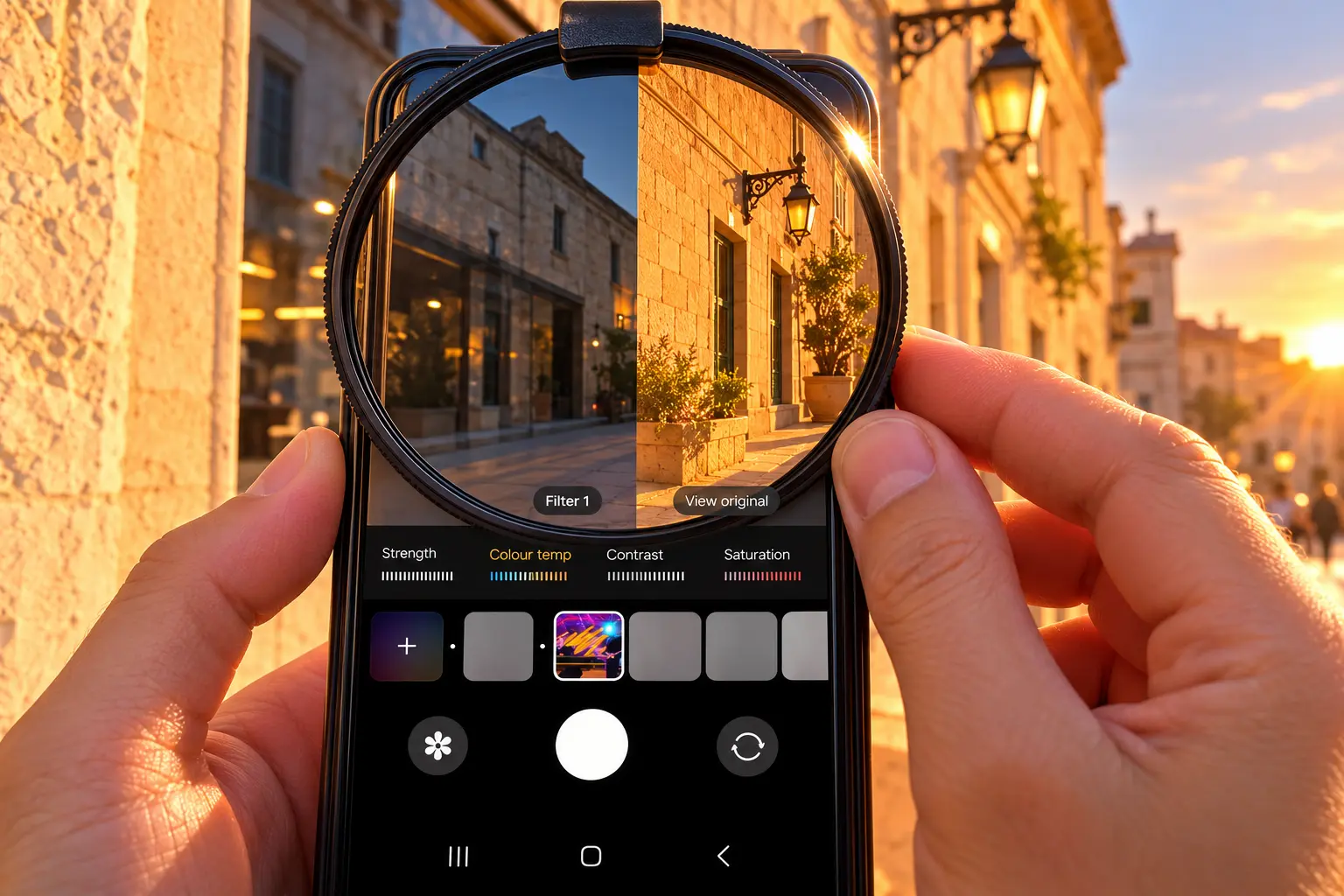
The Ten Film-Style Filters and Their Looks
Samsung’s own filter guide lists ten film-style filters grouped by color, six of them new and four of them improved versions of older defaults. Read the line, then swipe until the preview matches the scene in front of you.
| Filter | The look Samsung describes |
|---|---|
| Breeze | A soft movie look with low saturation and low contrast |
| Pulse | Calmer, lower saturation, with a 20th century documentary magazine feel |
| Crystal | Bright and clear |
| Shiver | High saturation and contrast, with vivid primary colors |
| Chill | Cold and dramatic |
| Glow | Natural, realistic color |
| Amber | Retro color that follows classic negative film |
| Sunbeam | A bright, polished standard look |
| Shadow | Soft black and white with rich dark tones |
| Shade | A standard black and white film look |
Chill is the one to open when you want the frame to feel cold. Amber is the one that leans retro, and Glow stays closest to the colors the camera already saw. Shadow keeps a softer black and white with more detail in the dark tones, while Shade is the plainer black and white film look.
Shiver already carries high saturation and contrast, so pushing those sliders further makes the colors harsher. If the preview is close but too strong, lower the strength before you hunt for a different name.
How to Turn On a Filter in the Camera App
On a Galaxy S25 FE, S25, S25+, S25 Edge, or S25 Ultra, open Camera and tap Quick controls, the four dots. Filters is in that tray, and the same tray can send you to the Galaxy Store for more looks.
On a phone that still uses the older control, tap the Effects icon and then Filters. Samsung’s My Filters steps describe that icon as two stacked squares in Photo mode. If you see three overlapping circles instead, that mark opens Filters too.
- Open Camera and choose Photo.
- Open Filters from Quick controls or the Effects icon.
- Swipe the thumbnails until the preview matches the scene.
- Tap “Original”, or press and hold “View original”, when you want the plain preview back.
- Tap the shutter when the look is right.
Samsung’s own S25 video shows the same job in motion: create a filter from a photo, shoot with it, and fine-tune it afterward.
The steps above are enough if you would rather follow the screen than play the clip. Once a preset is on, the next choice is whether that name is enough or you want a look copied from a photo of your own.
How to Make a Custom Samsung Camera Filter
When none of the ten names match a picture you already love, build a filter from that picture. The phone reads the photo and saves a look in the same style, which you can use on later shots.
- In Photo mode, open Filters.
- Tap the plus sign, then Create filter.
- Choose a photo in Gallery. A screenshot of a picture you like is enough.
- Tap the name if you want a new label, then tap Create.
Samsung lets you design up to 99 custom filters and keep them on the phone. The same create flow works in the editor, and on a Z Flip4 or a newer Flip you can apply a filter from FlexCam without opening the phone flat.
The filter follows the color of the photo you chose. It does not copy the daylight, the exposure, or the lens that made that photo, so a night picture used as the source will not turn a noon street into that night. Pick a source photo shot in light like the light you shoot in now.
A source photo with a strong indoor bulb cast will push that orange onto later outdoor shots. If every new picture comes out the wrong color, make a second filter from a daylight photo and leave the indoor one for indoor rooms.
How to Tune Color, Contrast, and Film Grain
After you select a filter, the S25 camera guide lets you adjust strength, color temperature, contrast, saturation, and film grain. Samsung’s filter write-up calls strength Intensity and lists those same five controls.
Each filter draws the sliders in its own way, especially color temperature, saturation, and contrast, so the bar you see is part of how that filter behaves. Move one slider, look at the preview, and stop before you stack a second change you did not mean to make.
Film grain is the last slider. Samsung shaped it from real film, so the grain in bright areas and the grain in dark areas do not match. Raise it a little when you want that texture, and leave it down when you want a clean file.
In Camera settings, open Settings to keep and leave filters on if you want the phone to reopen on the same look. The official S25 video also shows a later pass in Gallery’s editor, where you can still change brightness, saturation, and contrast on the photo you already took.
Best Filters for Samsung Camera by Phone Model
Samsung’s CamCyclopedia entry dated June 30, 2025, names the phones and tablets that get the ten film-style filters. A later software update can put the same controls on a phone that is not printed there, so treat the list as the published set and still check your own Camera app.
- Galaxy S22, S23, S24, and S25 series
- Galaxy S23 FE and S24 FE
- Galaxy Z Fold 4, Z Fold 5, Z Fold 6, and Z Fold Special Edition
- Galaxy Z Flip 4, Z Flip 5, and Z Flip 6
- Galaxy Tab S9 and Tab S10 series
The film grain slider is a shorter list. Samsung includes the S22, S23, S24, and S25 series, the Z Fold 4, Z Fold 5, Z Fold 6, and Z Fold Special Edition, and the Z Flip 4, Z Flip 5, and Z Flip 6. The S23 FE, the S24 FE, and the Tab S9 and Tab S10 are on the ten-filter list and off the grain list.
Phones outside both lists can still offer My Filters, which is the older name for a filter you build from a photo. Samsung says whether you see it can differ by model and by software version, and also by the resolution and aspect ratio you picked. The S25 camera guide, which covers the S25 FE, S25, S25+, S25 Edge, and S25 Ultra, is the page that puts Filters inside Quick controls.
When Does a Glass Filter Help a Samsung Camera?
Color sliders cannot pull a reflection out of a file, and they cannot hold a video shutter open in hard sun without blowing the sky. That is when glass, or Expert RAW’s digital ND for a still photo, does the work the filter row cannot.
| Kind | Use it when | Where it lives |
|---|---|---|
| Film-style filter | You want a color mood, black and white, or grain | Camera app and Gallery |
| Custom filter | You want new shots to echo a photo you like | Camera app |
| Circular polarizer | Glare sits on water, glass, or wet leaves | A clip in front of the lens |
| Digital ND | A still photo needs motion blur in bright light | Expert RAW |
| Glass ND | Video in sun needs less light for a slower shutter | A clip in front of the lens |
Picture a sunny pier. People on the deck want Amber or Glow, with strength pulled down if skin goes too orange. Glare on the water wants the polarizer turned until the white sheet drops. Waves that should smear in a still photo want digital ND, starting at a low step and raised if the water is still frozen.
What Does a Circular Polarizer Cut?
A circular polarizer cuts polarized glare from surfaces that are not metal. Water, window glass, and wet leaves are the ones you will use it on, and the sky often goes deeper as you turn the ring. Watch the phone screen while you turn it, and stop when the reflection falls.
LINE UP THE LENS YOU ARE USING
- The active camera: Seat the clip over the lens that is taking the picture, not over a neighboring lens you are not using.
- The preview: Turn the ring and watch the screen, then shoot only after the glare has dropped.
- The color after: Add a camera filter once the reflection looks right, not before you have turned the glass.
Switch from the ultra-wide camera to the main camera and look again, because a clip lined up for one lens can miss the other. If the preview cuts off the scene you framed, reseat the clip before you trust the shot.
How to Set the Digital ND Filter
The Digital ND filter in Expert RAW does not put dark glass on the lens. The phone shoots a run of frames across the time you set, fills the gaps between those frames, and blends them so water or clouds can streak while the daylight shot stays usable.
- Open Expert RAW and turn on the ND filter in Expert RAW Labs.
- Tap the ND mark on the preview.
- Pick a strength that starts at 2 and doubles from there.
- Stop at the step where the motion blurs and the bright areas still hold detail.
The steps run 2, 4, 8, 16, 32, 64, 128, 256, 512, and 1024. The control marks that top step as 1000, so you are not looking for a button that reads 1024. A higher number blocks more light in that blend, and a lower number lets more of it through.
When to Use a Glass ND on Video
A glass ND filter cuts light before it hits the sensor, across the whole frame, and a neutral one does that without painting a color cast. Use it when you are recording video in sun and you want a slower shutter than the bright scene would otherwise allow.
Digital ND, as Samsung describes it, lives in Expert RAW for still photos. It is not the tool inside normal Video mode. If the clip is only for a waterfall still, try the in-app ND first and skip the extra glass.
What to Do If a Samsung Filter Will Not Apply
If Filters is missing, leave the 64MP setting at 3:4. Samsung says My Filters is unavailable in that aspect ratio and resolution, and other resolution or aspect choices can hide filters too.
If a custom filter will not save, or one you saved is gone, the Filter Provider system app is the next place to look.
- Open Settings, then Apps.
- Tap the sort icon, turn on Show system apps, and open Filter Provider.
- Under Storage, tap Clear data, then Delete.
Samsung warns that clearing that data can delete filters you already saved, so do it only when creation itself is broken. Then check Software update and choose Download and install. On some carriers that menu is labeled System updates.
To remove or reorder a filter, touch and hold it, then pick the action. In Gallery, open the photo, tap the pencil, then the three-circle Filters icon, change the strength or choose another filter, and tap Save. More looks, when you want them, sit under the plus sign as Download filters, which opens the Galaxy Store.
Frequently Asked Questions
Can You Use Samsung Camera Filters on Video?
Yes. You can use your filters for both photos and videos in the Camera app, which is what Samsung shows in its Galaxy S25 filter guide. If the icon is missing, switch to Photo or Video and open Filters from Quick controls or the Effects icon.
Which Samsung Camera Filter Suits a Portrait?
Glow is the natural, realistic color, and Breeze is the softer movie look with low saturation and low contrast. To adjust the face rather than the color grade, use the Face control, which sits apart from these filters.
Why Does a Custom Filter Miss the Original Photo?
A custom filter follows the reference photo’s color, not the daylight, exposure, or lens that created it. Shoot in light that is close to that photo, then move strength and color temperature until the preview looks right.
Do Older Galaxy Phones Have the Same Filters?
The ten named film-style filters are listed for certain Galaxy S, Z, and Tab models, not for every Samsung phone. Other models can still offer My Filters, and Samsung says that offer can differ by model and by software version, so check Photo mode for a Filters control.
Can You Use a Clip-On Filter With a Camera Filter?
Yes. The clip changes the light that reaches the sensor, and the camera filter grades the color after that. Set the glass while you watch the preview, then add a film-style look if the color still needs a change.
Keep one saved filter for daylight color and one built from a photo you already like, and leave Settings to keep switched on so the camera reopens on that look. Clip glass onto the phone when the water is glaring or the video shutter is too fast in sun, and use Expert RAW when a still photo needs the longer blur without a piece of glass.

A CubeSat Will Age Whisky That Never Comes Home

A Charity Quote Cost Shia LaBeouf the FKA twigs NDA

Looker Turned a Model’s Body Into Ad Inventory

Infinity Ward Bets a Paid DMZ Will Stick This Time

Disney Sidesteps a Kimmel Renewal as Failla Cites Losses

Southwest Preboarding: Who Qualifies and What to Do

False AI Intel Nearly Put US Crews on a Chinese Ship

How Often Do You Have to Change a Monkey’s Diaper?

Tim Cook’s $4.6 Trillion Apple Still Runs on One Phone

Dunes Air Sues Nora Fatehi Over Its Luxury Jet
-
 TRAVEL3 years ago
Southwest Preboarding: Who Qualifies and What to Do
-
 NEWS2 months ago
False AI Intel Nearly Put US Crews on a Chinese Ship
-
 LIFESTYLE3 years ago
How Often Do You Have to Change a Monkey’s Diaper?
-
 BUSINESS2 months ago
Tim Cook’s $4.6 Trillion Apple Still Runs on One Phone
-
 ENTERTAINMENT2 months ago
Dunes Air Sues Nora Fatehi Over Its Luxury Jet
-

 LIFESTYLE3 years ago
How Long Does It Take for Armpit Hair to Grow?
-

 NEWS2 months ago
OpenAI Posts a Navier-Stokes Proof Clay Has Not Touched
-

 TRAVEL2 years ago
Smallest Airlines in the US: Niche Carriers and Unique Flights